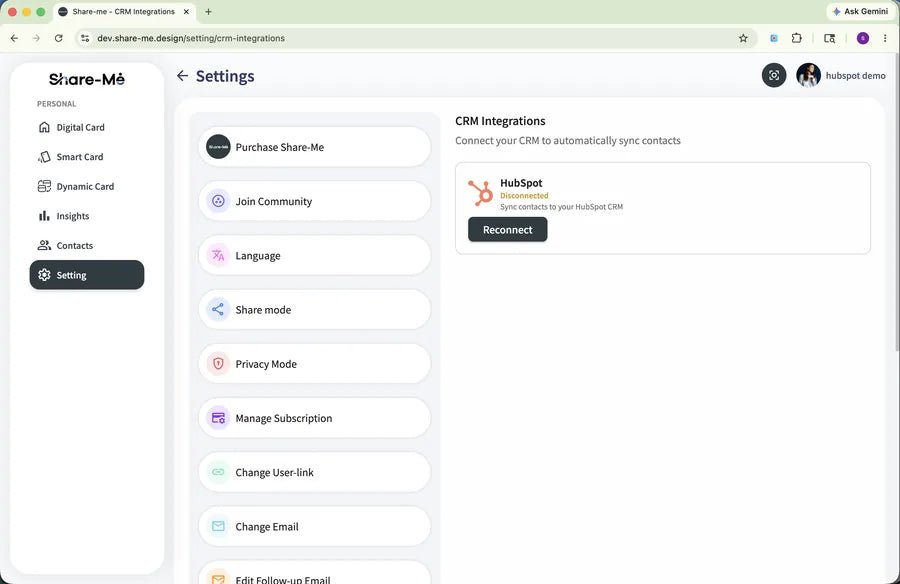
Open CRM integration
From the Share-Me left sidebar, select Settings and open CRM Integration. Click the black Connect button on the HubSpot card (status Not Connected).
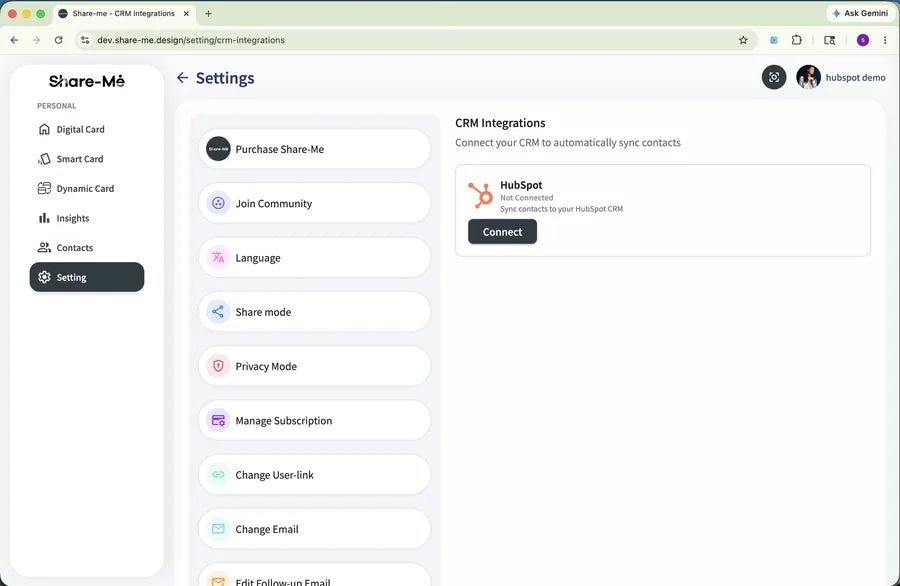
We automatically sync your contacts. This guide will walk you through the entire process, from creating your HubSpot account to obtaining approval via Share-Me, until the green "Connected" badge appears.
From the Share-Me left sidebar, select Settings and open CRM Integration. Click the black Connect button on the HubSpot card (status Not Connected).
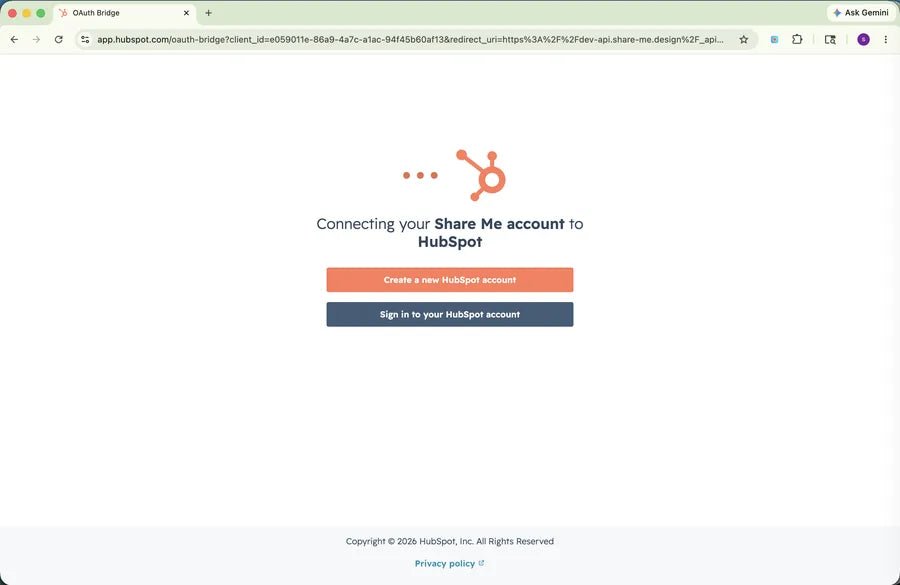
On the Connect your Share-Me account to HubSpot screen, choose from the following two options:
• Create a new HubSpot account (orange) — This is the option for the steps in this guide.
• Sign in to an existing HubSpot account (dark) — If you already have an account.
Click the orange "Create a new HubSpot account" button.
If you are logged into Google, the first option will be Continue as
Otherwise, please select Sign up with Microsoft, Sign up with Apple, or enter your email address and select Verify email.

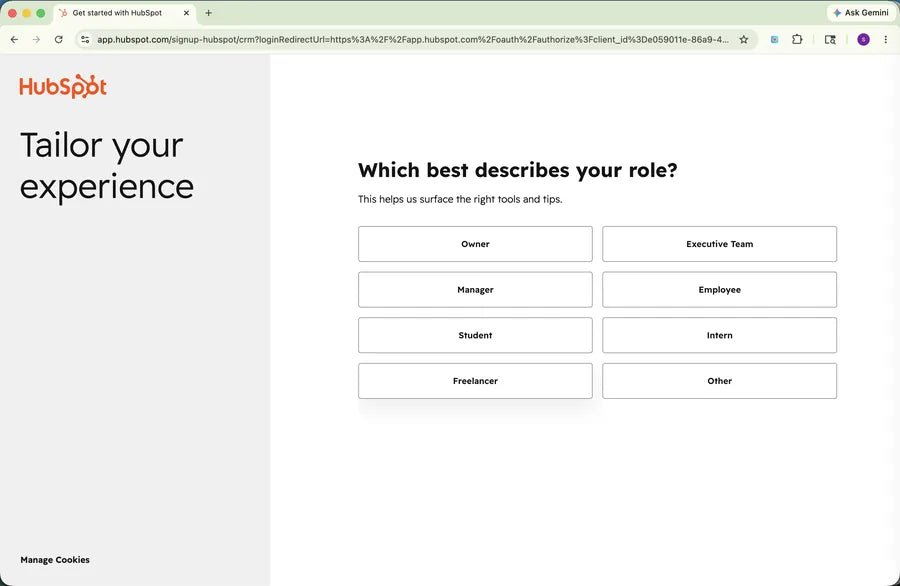
Please click on the card that corresponds to your role.
You can choose from Owner, Manager, Student, Freelancer, Executive, Employee, Intern, or Other.
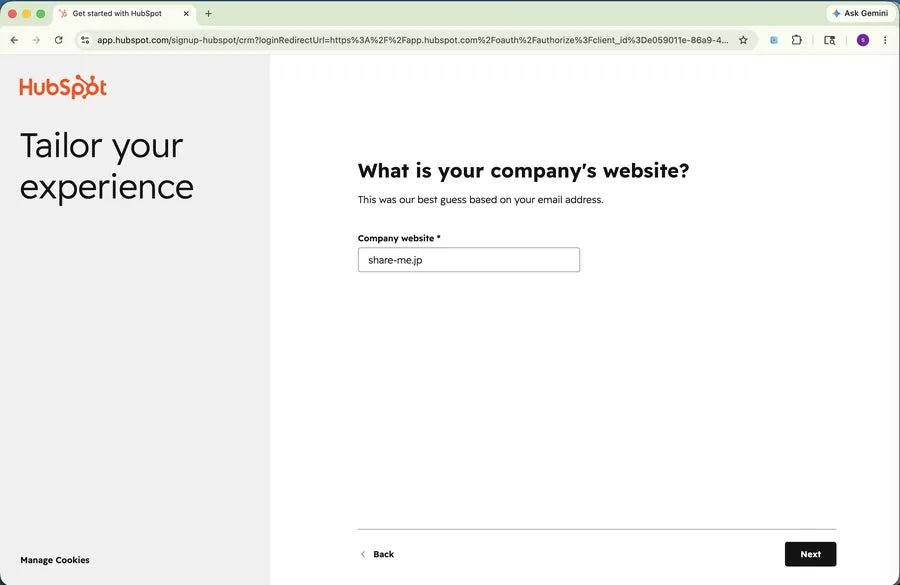
Enter your company's domain (e.g., share-me.jp) in the Company website * field. You can also use the auto-filled suggestions.
After entering, click the "Next" button (it will turn black and become active once a value is entered).
Please check the following three items automatically filled in by Breeze AI. You can make corrections if necessary.
• Industry * (Industry - Dropdown)
• Company size * (Company size - Dropdown)
• Company name * (Company name - Text)
Click the black "Create account" button at the bottom of the screen.

After your account creation is complete, HubSpot will automatically continue the OAuth flow. On the Connect Share-Me to HubSpot screen, the new portal is pre-selected (e.g., Share-Me / share-me.jp / Hub ID 246259985).
Click the orange "Choose Account" button.

Please confirm the access permissions requested by Share-Me. These include managing and viewing CRM data and basic information for your HubSpot account.
If the content is satisfactory, click the orange "Connect app" button.

In the modal window for Connecting an unverified app, please enter the following text exactly: I accept the risk
Once your input matches, the orange "Connect" button will be enabled, so click it to approve.

The HubSpot card will display a green "Connected" status, along with the Account ID, Account name, and connection date and time. Contact synchronization will begin at this point.
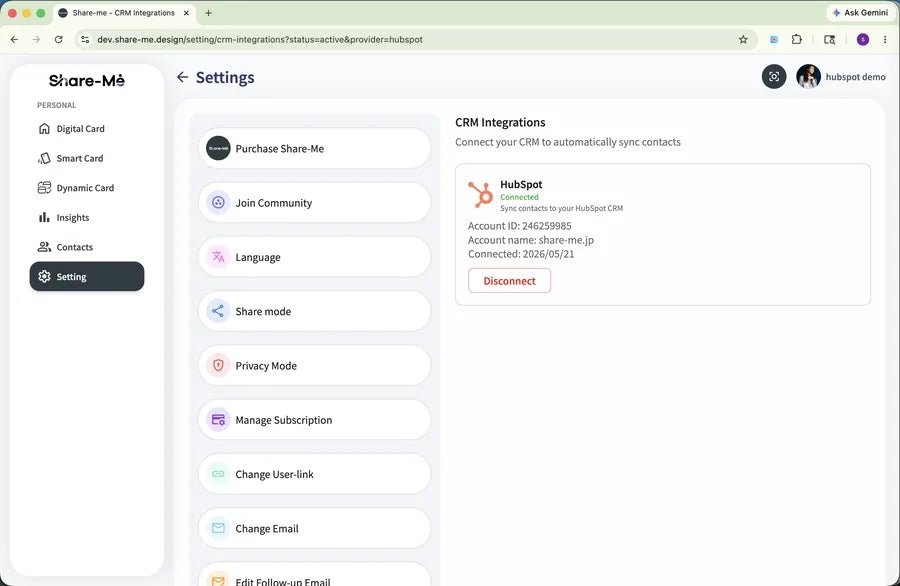
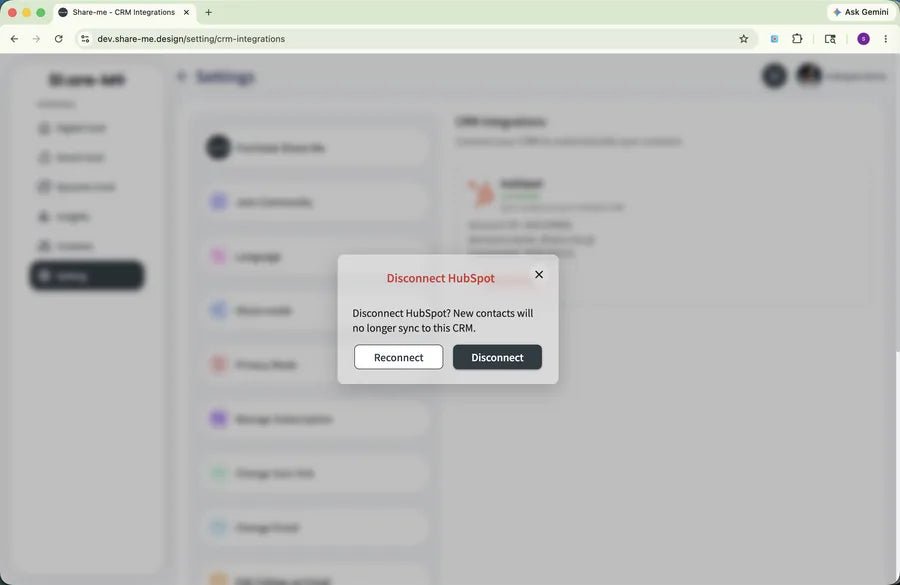
Click the red "Disconnect" button on the HubSpot card. A modal will appear asking "Disconnect HubSpot?" Select the black "Disconnect" button to confirm the disconnection. If you wish to maintain the connection, select the white "Reconnect" button.
After disconnection, the card will display a red "Disconnected" status and a black "Reconnect" button. You can reconnect at any time as needed.